
Screenshots


App details
- Version
- 22.7
- Size
- 146.47 MB
- Updated
- June 19, 2024
- Requires
- Windows 11
- Language
- English
- License
- Full
- Developer
- Migrate Cloud Data
- Category
- Windows OS
SoftPas in:
This product is also available in the following languages:
About Google Workspace Backup Software
Download Google Workspace Backup Software – Secure, Free Backup for Google Workspace
Overview – Why a Dedicated Google Workspace Backup Tool Matters
In today’s cloud‑first environment, Google Workspace powers the daily communication and collaboration of millions of businesses, schools, and non‑profits. While Google’s native redundancy protects against hardware failure, it does not shield you from accidental deletions, ransomware, or the need to retain data for compliance audits. Google Workspace Backup Software fills that gap by providing a dedicated, easy‑to‑use solution that extracts, stores, and restores your Google Drive files, Calendar events, Contacts, and email messages on a local device or network share.
The application is built with a clean, intuitive UI that lets administrators and power users alike schedule automatic backups, select granular data ranges, and choose export formats that fit existing workflows. Whether you need a one‑time export of critical project files or a continuous nightly sync of every mailbox, the software adapts to the scale of your organization without sacrificing speed or security.
Key pain points addressed include:
- Protection against accidental file deletions or malicious user actions.
- Compliance with GDPR, HIPAA, or industry‑specific data retention policies.
- Seamless migration paths from Google Workspace to Microsoft 365 or on‑premise email servers.
- Offline access to essential documents and contacts during internet outages.
Because the tool runs locally on Windows 11 (and earlier Windows versions), you retain full control over encryption keys and storage locations, eliminating the “black‑box” concerns that come with third‑party cloud backup services.
Key Features & Capabilities
- Comprehensive Data Coverage: Backup Google Drive, Calendar, Contacts, and Gmail in a single operation.
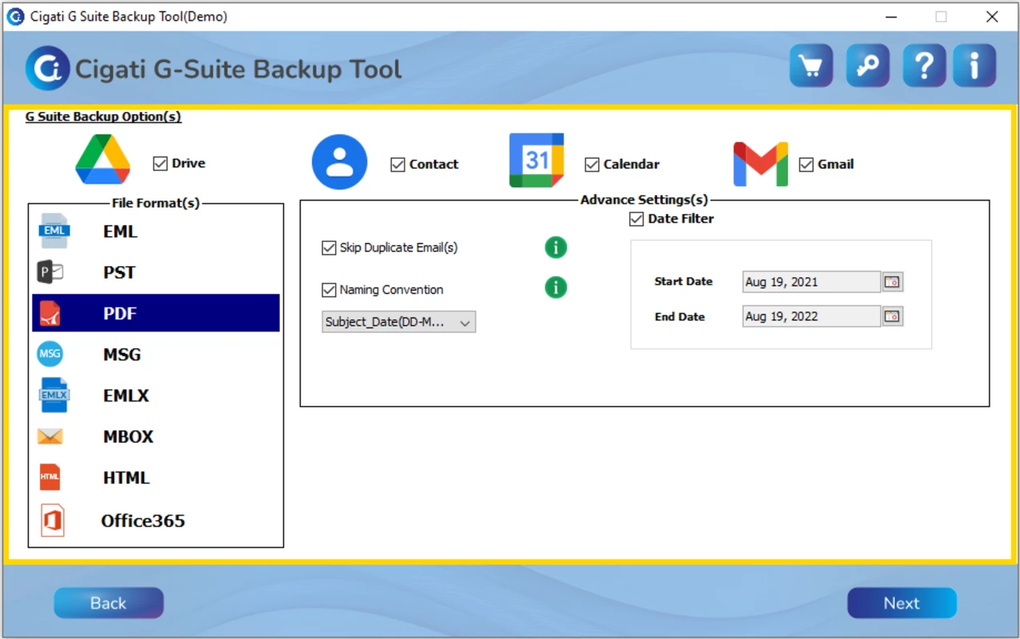
- Multiple Export Formats: Emails can be saved as PST, EML, PDF, MSG, EMLX, MBOX, or HTML, enabling easy import into Outlook, Thunderbird, or archival systems.
- One‑Click Migration to Office 365: Built‑in migration wizard moves Gmail mailboxes directly to Exchange Online without third‑party converters.
- Incremental & Scheduled Backups: Choose hourly, daily, or weekly schedules; the software detects only changed items to reduce storage usage.
- Granular Selection: Backup specific folders, labels, or calendar ranges; ideal for departmental data isolation.
- Strong Encryption: AES‑256 encryption protects backup files at rest; optional password protection adds another layer of security.
- Real‑Time Progress Monitoring: Live progress bars, detailed logs, and email notifications keep admins informed of backup health.
- Restore Flexibility: Restore individual files, whole folders, or entire mailboxes with just a few clicks.
- Cross‑Platform Export: Exported files are compatible with Windows, macOS, and Linux workstations for offline access.
- Lightweight Installer: The installer footprint is under 150 MB, and the application runs silently in the background after setup.
Each feature is designed with scalability in mind. For small teams, the free tier offers up to 5 GB of backup storage per month, while enterprise licenses unlock unlimited storage, multi‑user administration, and priority support. The modular design also allows future feature extensions—such as Google Chat archiving—through plug‑in updates, ensuring the tool evolves alongside Google Workspace’s own roadmap.
Installation, Configuration & First Backup Walkthrough
Getting started with Google Workspace Backup Software is straightforward. Follow these steps to ensure a smooth deployment:
- Download the Installer: Visit the official product page and click the “Download for Windows 11” button. The installer is digitally signed to guarantee authenticity.
- Run the Setup: Double‑click the
.exefile. The wizard will request administrator privileges; accept to allow service creation and scheduled task registration. - Accept the License: Review the EULA, then click “I Agree”. You may opt‑in for automatic update checks, which is recommended for security patches.
- Connect Your Google Account: The software opens an OAuth 2.0 consent screen. Sign in with an admin account that has “Domain-wide Delegation” enabled. Grant read‑only scopes for Drive, Gmail, Calendar, and Contacts.
- Choose Backup Destination: Specify a local folder (e.g.,
C:\GoogleBackups) or a network share. For encrypted backups, enable the “AES‑256 encryption” toggle and set a strong password. - Configure Backup Scope: In the “Select Data” tab, tick the boxes for Drive, Calendar, Contacts, and Gmail. Use the “Advanced Filters” to limit Gmail to specific labels or date ranges.
- Set a Schedule: Navigate to the “Schedule” pane. Choose “Daily at 02:00 AM” for most businesses, ensuring backups run during off‑peak hours.
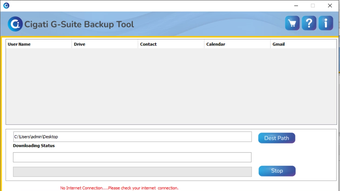
- Run the First Backup: Click “Start Backup Now”. The progress window displays real‑time statistics: files processed, data transferred, and estimated time remaining.
- Verify the Log: After completion, open the log file (found in the
Logssubfolder). Look for a “Backup completed successfully” entry and note the total size of the generated archive. - Test Restoration: Select a single file or email from the “Restore” tab, choose the destination (original location or alternate folder), and confirm the restore operation works as expected.
Best practices include enabling Windows Firewall exceptions for the backup service, scheduling regular integrity checks, and periodically rotating backup media to guard against hardware failure. The UI also offers a “Export Settings” button, allowing you to save your configuration as a JSON file for rapid deployment across multiple machines in larger organizations.
Compatibility, System Requirements & Performance Insights
Google Workspace Backup Software is officially compatible with Windows 11, Windows 10 (1809 and later), and Windows 8.1. The application leverages the .NET 6 runtime, ensuring forward compatibility with future Windows releases while maintaining a low memory footprint (approximately 120 MB during active backup).
Hardware Recommendations:
- CPU: Dual‑core 2 GHz or higher (Intel i5/AMD Ryzen 5 or better).
- RAM: Minimum 4 GB; 8 GB recommended for large mailboxes or simultaneous multi‑user backups.
- Disk: SSD for the backup destination improves write speeds dramatically—up to 300 MB/s on modern NVMe drives.
- Network: Gigabit Ethernet or Wi‑Fi 6 for fast data transfer when backing up to a NAS or cloud‑mounted drive.
The software intelligently throttles API calls to Google’s servers, staying within the daily quota limits while still completing full backups within a typical 2‑hour window for a 100 GB dataset. Incremental backups, which only transfer changed data, often finish in under 15 minutes, reducing bandwidth impact on corporate networks.
For organizations running virtual desktop infrastructure (VDI) or remote desktops, the installer can be deployed silently using standard MSI parameters, enabling automated roll‑out via Group Policy or Microsoft Endpoint Manager. The backup service runs as a background Windows service, so user logins or reboots do not interrupt scheduled tasks.
Security‑focused teams will appreciate that the application never stores OAuth tokens on disk; they reside in the Windows Credential Manager, encrypted by the OS. Additionally, the software supports Windows BitLocker integration, ensuring that backup archives remain encrypted even if the storage medium is removed from the host system.
Pros, Cons, Frequently Asked Questions & Final Verdict
Pros
- All‑in‑one backup for Drive, Calendar, Contacts, and Gmail.
- Multiple export formats make migration and archival painless.
- Incremental scheduling saves bandwidth and storage.
- Strong AES‑256 encryption protects data at rest.
- Native Windows 11 support and lightweight installer.
- One‑click Office 365 migration reduces manual effort.
Cons
- No native macOS or Linux client (requires Windows VM for cross‑platform use).
- Advanced filtering options are only available in the paid tier.
- Initial full backup of very large Google Workspace accounts may take several hours.
Frequently Asked Questions
Is the backup stored on my local machine secure?
Yes. The software encrypts all backup files with AES‑256 by default, and you can add a password for an extra layer of protection. Combined with Windows BitLocker, the data remains secure even if the drive is removed.
Can I restore individual emails without downloading the entire backup?
Absolutely. The restore interface lets you browse the backup archive, filter by label or date, and pull out a single .EML, .PST, or .PDF file directly to your Outlook or Gmail client.
Does the tool support Google Workspace domains with multiple organizational units?
Yes. Using the “Organizational Unit” filter, administrators can target specific OUs for backup, making it easy to comply with departmental data‑retention policies.
What happens if Google’s API quota is reached during a backup?
The software includes built‑in throttling and will pause the operation, then automatically resume once the quota resets. You can also configure a lower request rate in the settings to avoid hitting limits.
Is there a free trial or a limited‑feature version available?
A fully functional 14‑day trial is offered, after which you can continue with a free tier that supports up to 5 GB of backup per month. For unlimited storage and advanced filters, an annual license is required.
Google Workspace Backup Software strikes a solid balance between ease of use and enterprise‑grade features. While it currently lacks native macOS support, its Windows‑only focus allows for deep integration with Windows security mechanisms, making it an excellent choice for organizations that standardize on Windows desktops. The export options and migration wizard are especially valuable for businesses planning a move to Office 365. Overall, it earns a strong recommendation for anyone looking to protect critical Google Workspace data without relying on third‑party cloud backup services.
Conclusion & Call to Action
Data loss can happen in an instant, but with Google Workspace Backup Software, you gain a reliable safety net that backs up your Drive files, Calendar events, Contacts, and Gmail messages to a location you control. Its intuitive interface, robust encryption, and seamless Office 365 migration make it a standout tool for IT admins, compliance officers, and small‑business owners alike. Ready to safeguard your organization’s most valuable information?
Download the installer now and start a 14‑day free trial. Protect your data today—because peace of mind is priceless.
Guides & Tutorials
How to install Google Workspace Backup Software
- Click the Download button above.
- Once redirected, accept the terms and click Install.
- Wait for the Google Workspace Backup Software download to finish on your device.
How to use Google Workspace Backup Software
This software is primarily used for its core features described above. Open the app after installation to explore its capabilities.
User Reviews
No reviews yet. Be the first to share your experience.
You may also like
more
Llama 2
Free-to-use large language model As the new addition to Meta’s arsenal of langua...

NotebookLM
Revolutionizing the note-taking and idea-generation process NotebookLM is an exp...

Github co pilot
AI-inspired software development and coding platform GitHub Copilot is a browser...

Google Gemma
Google’s lightweight AI models Introducing Google Gemma , a family of cutting-ed...

AI Image Enlarger
A free app for Windows, by ai-image-larger. AI Image Enlarger is a free software...

DALL E
AI-driven text-to-image transformation engine DALL·E is a free graphic and desig...